Run Srcly on a repository, choose one review question, and follow its evidence into the source. This guide takes you from installation to a first browser review and a saved terminal report.
1. Launch Srcly
Install uv if you do not have it. Then run Srcly without a global install:
uvx srcly
The command uses the enclosing Git repository as its initial root. Outside a repository, it uses the current directory. Pass a path to select another root:
uvx srcly /path/to/repository
The packaged release requires Python 3.13 or newer. The code you analyze can use another Python version. Srcly starts a local web server and opens the app in your browser. The default bind address is 127.0.0.1, and Srcly selects an available port. Keep the terminal open while you use the app. Press Ctrl+C in that terminal to stop it.
2. Scan a repository
When the app opens, review the suggested path or enter another directory in the path bar. Select Analyze. Srcly shows scan progress while it reads files. In a Git repository, file discovery includes tracked files and nonignored untracked files. Git-ignored and common generated or dependency paths are excluded. If you want a narrower scan, enter a subdirectory as the root.
The first scan can take longer than a later visit because the local cache can reuse unchanged analysis. The cache is stored in your user cache directory, not in the analyzed repository. A file change invalidates the cached analysis for that root. In a terminal workflow, use --refresh on commands that support it when you need to rerun analysis and checks; see Reports.
3. Complete a first review
Start with a question. For example: “Which function has the highest complexity in this folder?”
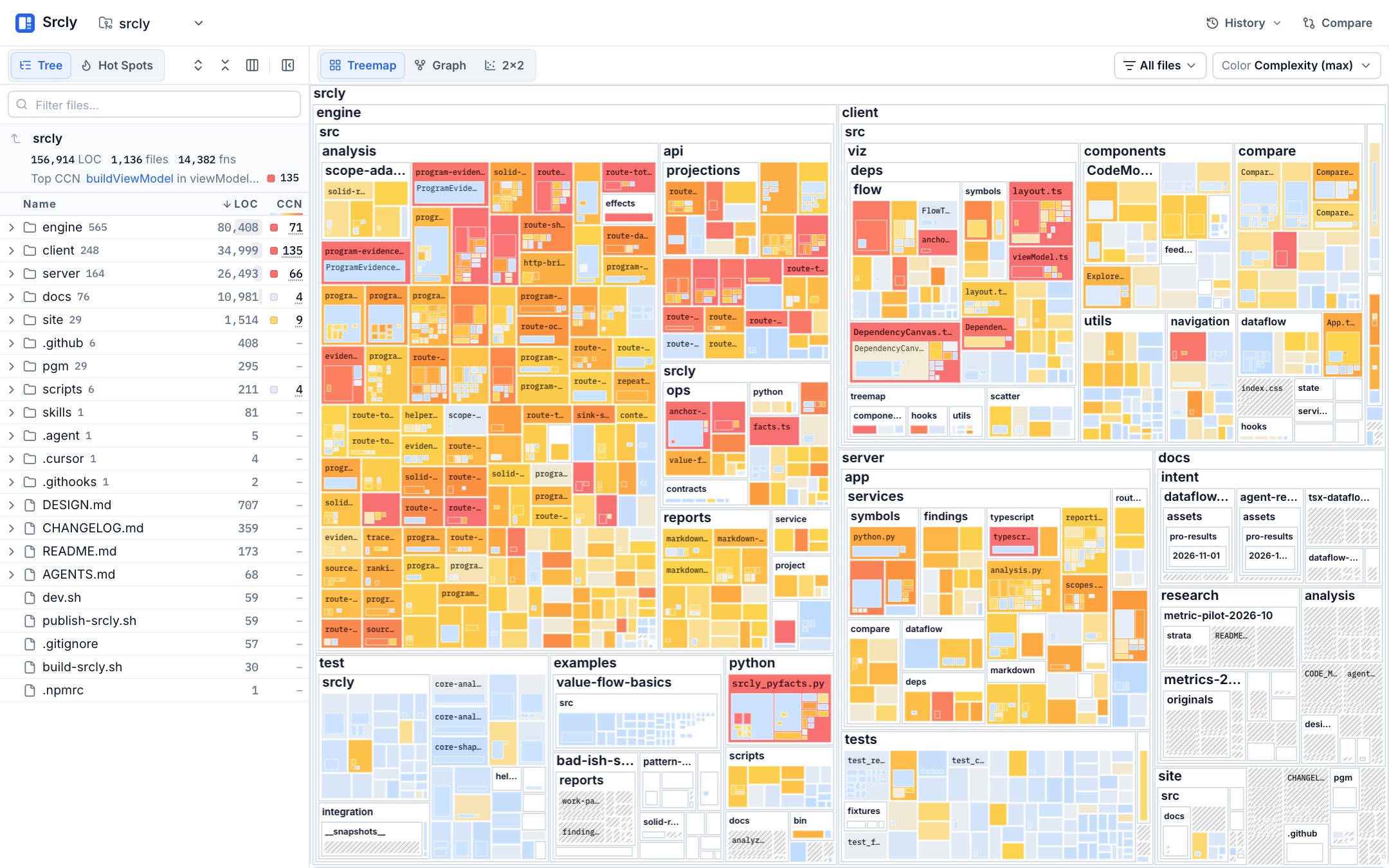
- Start in the treemap. Area represents lines of code; color represents the selected metric.
- Choose Complexity in the metric controls. A darker or stronger color indicates more of the selected metric under its legend.
- Open Hot Spots or sort the explorer by complexity to find a high-ranked function or file.
- Select the row or tile. Read the value, metric witness, and source lines in the code viewer.
- Check whether the measurement applies and whether a checker finding or dependency adds useful context.
- Confirm a suspected problem against the source and your project's own tools.
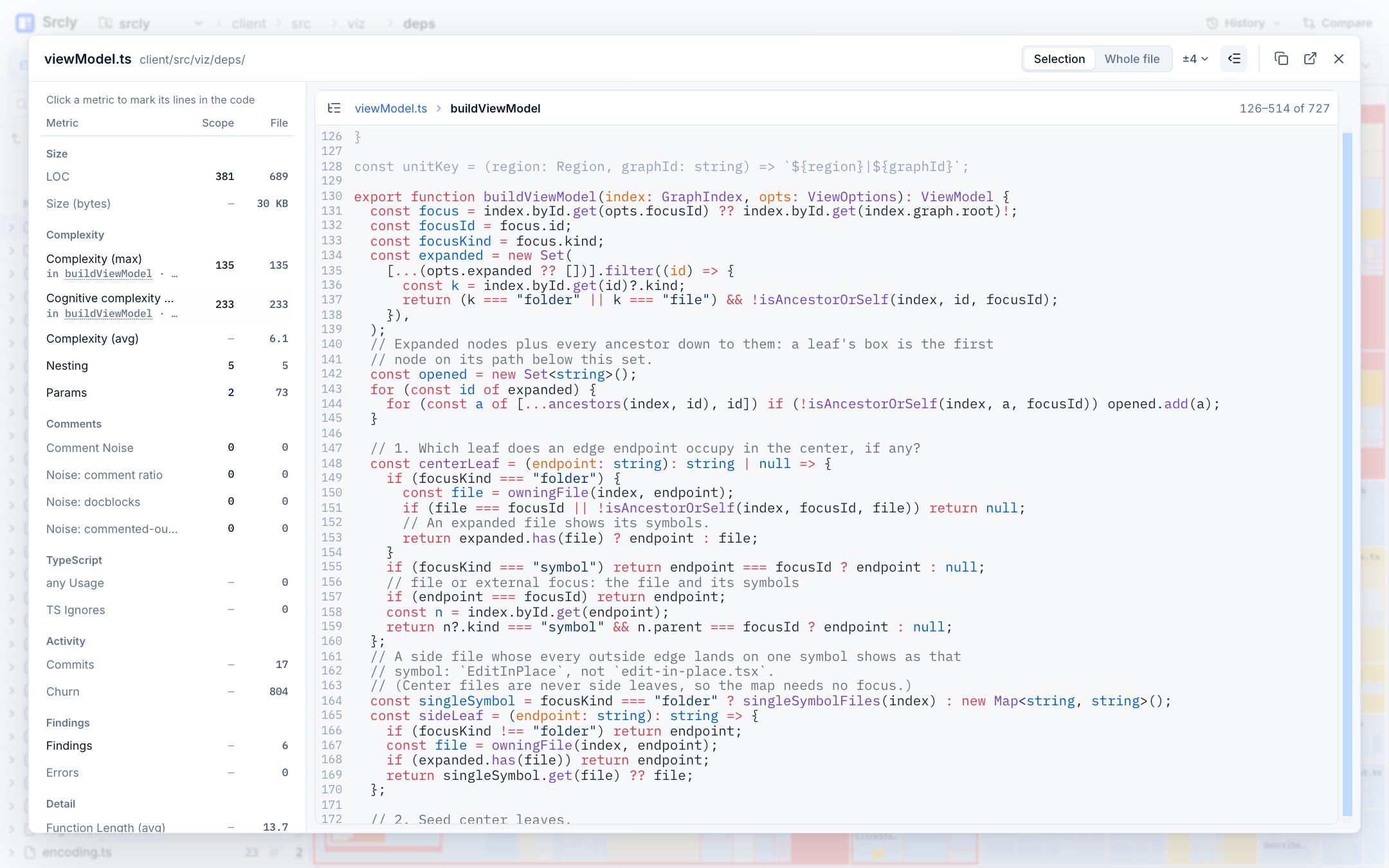
The measurement helps you choose where to look. It does not say that code is defective or must be changed. A folder complexity value is the maximum among its functions, not the sum. A checker result depends on that tool's rules and coverage. Read Explore and Metrics for more.
4. Save a report
For a terminal workflow, create a report:
uvx srcly report . --out .srcly
This writes report.md and structured JSON files under .srcly/. Read report.md first. It includes a scan summary, ranked findings, metric hotspots, and coverage information. The Analysis: line records whether the scan was reused or fresh, the Git revision and uncommitted state, checker coverage, and analysis failures. Use that information to decide whether the result is current enough for your review.
To inspect a narrower scope, run:
uvx srcly explain . --at src
uvx srcly explain . --at "src/app.tsx::App"
The first command explains a folder; the second explains a symbol. Use a path relative to the analyzed root. The printed Start at location can be copied into --at when you need to investigate a particular row. See Reports for output details and CLI for the full command list.
5. Decide what to do next
If a result is unavailable, read its reason. You may need a project checker, a TypeScript reachability entry, Git history, or Node.js for optional data flow. If a result is measured, inspect the code and decide whether it merits a change, a test, or no action. Srcly is a review aid, not an automatic quality verdict.
Metrics that do not apply or could not be measured appear as N/A, never as zero. Data-flow analysis requires Node.js 18 or newer and supports TypeScript, JavaScript, and Python roots. Without Node, the base scan remains available. See Findings for checker coverage and Data flow for trace outcomes.